Yes, if
Your Strategy trades a stock index as a CFD on its level, as a Pine Script Strategy on TradingView that fires webhook alerts. Where you execute it, a CFD broker with or without MetaTrader 5, is your business.
Indices are their own category on Triggon, with their own symbol list, their own instrument model, their own fee setting and their own ceilings. An index is not a stock and not a currency pair, and this guide does not treat it as one. It walks the route in order: the indices you can declare, how a CFD on the index level is modelled on broker margin, how your TradingView alerts reach Triggon, the evidence you export, the costs, the application and what happens after approval.
TradingView is the example here, not the requirement. Triggon authenticates the request and reads its JSON; it does not check what sent it. Your own server, a Python or Node.js bot, or another platform that can send the same authenticated webhook connects the same way. See how the connection works.
This route is open for applications right now.
Sample. Enabled indices and the ceiling are read from the platform's settings.
Your Strategy trades a stock index as a CFD on its level, as a Pine Script Strategy on TradingView that fires webhook alerts. Where you execute it, a CFD broker with or without MetaTrader 5, is your business.
Your Strategy trades exchange-listed index futures (ES, NQ, FDAX, with expiries and contract months): Triggon has no catalog or price feed for those and does not offer them. Your Strategy trades the shares in an index rather than the index itself: that is the stocks Algo guide. Or you take the trades by hand: the indices Manual guide is yours.
Same route, different guide: crypto, forex, stocks, commodities.
Eleven steps; seven before the application, four inside Triggon. The application's route screen shows the same list.
Any system that can send an authenticated HTTPS webhook when your Strategy acts: a Pine Script Strategy on a TradingView plan that can fire webhook alerts, your own server or bot, or another platform that can POST JSON. It must cover the symbols you will declare. Triggon never sees your Strategy, only the Signals it sends.
Index CFDs are dealt through a broker on margin. Triggon does not connect to your broker; declaring it is optional.
Pick your indices from the application's picker, which shows what is open to declare as you fill it in. Available now: every symbol on Triggon's indices list. You can declare up to 1 in one application.
One alert per declared symbol, firing on entries, stops, targets and exits, with the message shape Triggon reads. The private connection it points at is issued in your Provider Hub after approval.
A TradingView Strategy Tester export (CSV), or a MetaTrader 5 Strategy Tester or History report saved as HTML or XLSX with the terminal language set to English.
Your public name, a one-line summary, a full description, optional links and images. Subscribers read this before they subscribe.
The Hub creation cost, its validity period, the minimum subscription prices for this market and the platform fee are all stated before you apply, from the current platform settings.
The form collects what you prepared and validates it. The Hub creation cost is charged from your Triggon wallet when you submit.
An admin approves, asks for revisions or rejects, always with a reason. Resubmitting after a revision request is free.
After approval: copy the private connection details, send a test alert for every declared symbol in test mode, verify the health check, then press Go Live.
Go Live lists the Strategy on the Marketplace with the price and seats you set. Every Signal from then on is recorded permanently.
What you need. A Strategy that runs on its own and can send Triggon an authenticated webhook when it acts. On TradingView that means a Pine Script Strategy on a chart of each index you will declare, on a plan that can send webhook alerts. A Strategy that runs anywhere else, on your own server or inside a bot, sends the same request itself and needs no TradingView plan at all: see connect the Strategy you already have. The rest of this section walks the TradingView path, because it is the common one.
Which chart, and the symbol that matters. Triggon lists each index under
the symbol its price source uses, and that is the spelling a Signal must carry. Use a feed
whose symbol is spelled that way: SP:SPX or TVC:SPX arrive as
SPX. A broker's CFD ticker for the same index (US500,
USTEC, GER40) is a different spelling and will not resolve to
the declared index. The safest choice is your Strategy's per-index connection, issued after
approval, where the index is fixed by the connection and the alert need not name it.
Index CFD or leveraged product. Spot on this route is the broker CFD on the index level: dealt on margin, no expiry, long and short both allowed, leverage up to 20×. The "Futures" option means a leveraged broker derivative on the index, the same product family priced from the same index level; it does not mean an exchange-listed contract with a delivery month, which Triggon does not price or model.
Alert coverage. Entries, stop and target updates, partial closes, target hits, stop hits and closes. The TradingView page lists what each alert can express.
Index CFDs are dealt through a broker on margin, not on an exchange. Triggon does not connect to the broker.
Optionally, the name of your broker, chosen from a list, shown on your Marketplace card. No credentials, no API keys, no terminal login, and no connection.
Most CFD brokers deal indices through MetaTrader 5 under a house ticker
(US500, USTEC, GER40). Triggon's symbol is the
price source's (SPX, NDX, DAX); the terminal's
report import recognises the common house tickers for the same index and joins them to
the index you declared, and the Strategy Tester or History report is accepted as backtest
evidence.
MetaTrader 5, explained from the start →
In the terminal's symbol Specification, check the contract size and the leverage the account allows. Triggon models one index unit per contract, so one point of movement is one unit of the index's currency per contract; brokers differ, so read the specification rather than assume it. Declare a maximum leverage Triggon can honour, not the broker's maximum.
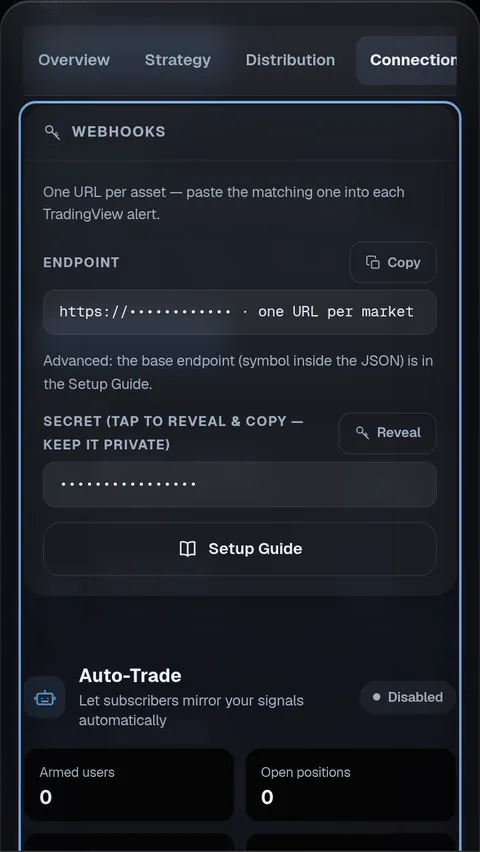
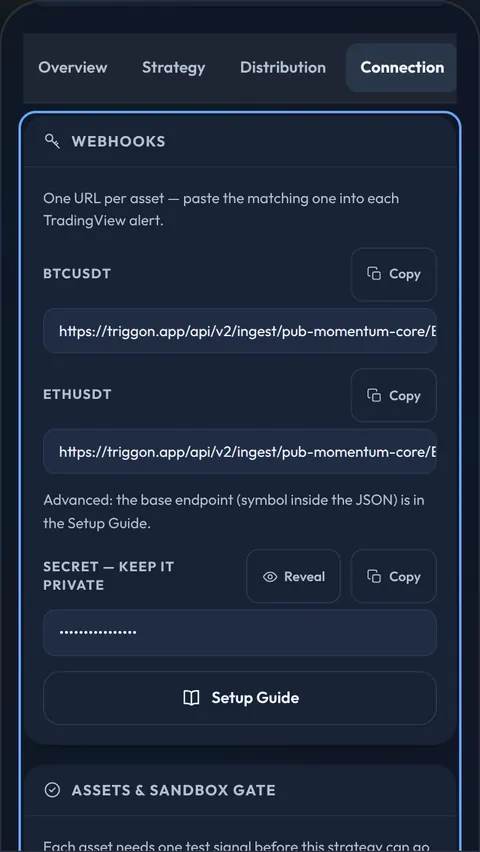
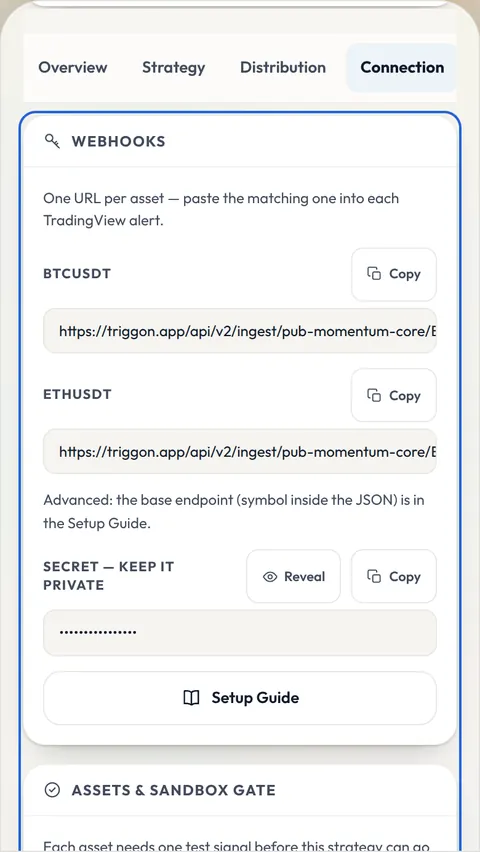
Your Strategy's private connection and secret are issued in the Provider Hub after approval, shown to nobody else, and rotatable at any time.
Write the alert message in the shape Triggon reads (event type, index, side,
price, stop, targets and sizes, a timestamp from TradingView's
{{timenow}} placeholder) and confirm in the alert log that
the Strategy fires on the events you expect.
One private connection per declared index and a secret, issued in the Connection tab of your Provider Hub, with ready-made alert messages. One alert per chart.
Parses and validates an alert completely and stores nothing. Every declared index must pass before Go Live. A refusal names its reason.
The connection itself. Test the alert events, the numbers and the backtest export before you apply.
Set the Strategy Tester's initial capital to $10,000, then List of Trades → Export (CSV), one file per index, with the index in the file name.
Export the Strategy Tester or History report as HTML or XLSX with the terminal language set to English. The import reads volume in lots and works the contract value out from the report's own profit figures, so the broker's contract size comes out of the numbers, not out of an assumption. The step-by-step export →
Preview before you submit: the application shows how the file was read before anything is stored. Imported history is marked as imported and does not count towards the Verified checkmark. What Verified means →
Your name, email and country come from your Triggon Profile and are shown read-only in the application.
A unique English name, a one-line summary, a full description, up to three trading styles, a risk level, and the cadence.
Optional website and social handles, a logo, a banner, a profile picture and a cover image.
Read live from the platform settings. Indices has its own Hub cost and validity setting, separate from stocks and forex.
An illustration computed from the live fee rate, not a forecast or a guarantee. Actual earnings depend on filled seats, cancellations and refunds, promotions, and any automatic Hub top-up. What decides what you earn →
Opened in Telegram. It confirms the route you chose here, links this guide on every step, and labels the venue field Broker, never Exchange.
Provider info, then the Strategy: name, summary, description, styles, risk level, market: Indices (fixed from your route), the index CFD or the leveraged product, position mode, the indices from the picker, your broker (optional), timeframes, the leverage mode and band (within 20×), the take-profit method, the maximum capital risk per position, prices and seats. Then the uploads, branding, operations and the review. You are not asked what fees to assume: Triggon applies the same fee assumptions to every Strategy, so published results stay comparable.
No broker credentials, no terminal login, no API keys, no connection details. No take-profit ladder; no drawdown claim.
Every step is saved on the server; leave and return with your route, market and answers preserved. Nothing sensitive is stored in your browser.
The checklist at the end of this page, confirmed item by item, and the fees shown once more. Then Submit and Pay.
Every Signal from Go Live on is permanent and public. Your share of each subscription lands in your wallet. After 20 closed trades over 30 live days the Strategy is ranked by its Triggon Score.
Complete Signals with a stop and at least one target, managed to a close. Keep the Strategy running through the trading week; a silent Strategy is warned, then suspended with its subscribers told.
Prices (above the minimum), seats, pausing, Hub recharges: yourself. Description, links, images and declared trading facts: reviewed first.
The route (Algo), the market (indices) and the instrument type. A different route or market is a new Strategy.
The items the application asks you to confirm before Submit and Pay on the indices Algo route.