TRIGGON Open in Telegram
Algo Provider · Crypto

Crypto Algo Provider guide: from your TradingView Strategy to recorded Signals.

This is the whole route for a crypto Algo Provider, in the order you do it: the exchange account you trade at, the symbols you can declare, how your TradingView alerts reach Triggon, the backtest evidence you export, what it costs, what the application asks, and what happens after approval. Nothing on the form should be new by the time you get there.

This route is open for applications right now.

Is this your route?

Yes, if

You run a Pine Script Strategy on TradingView that trades crypto pairs on an exchange (spot or perpetual futures), you can configure its alerts, and what you want from Triggon is subscribers and a record rather than a second execution system.

Manual instead, if

You take the trades yourself, or your process needs judgement a script does not capture. The Manual route needs no TradingView, no code and no alerts. The crypto Manual guide →

Another market, if

Your Strategy trades currency pairs, US stocks or spot metals. Same route, different guide: forex, stocks, commodities.

Your roadmap

Eleven steps. The first seven happen before you open the application; the rest happen inside Triggon. Each step links to the section of this page that explains it, and the same list is what the application shows you as its route screen.

  1. Prepare your TradingView Strategybefore you apply

    A Pine Script Strategy on TradingView, on a chart of the symbols you will declare, on a TradingView plan that can send webhook alerts. Triggon never sees the script itself, only the alerts it fires.

  2. Sort out your exchange accountbefore you apply

    Choose the exchange your Strategy trades on. Triggon never asks a Provider for exchange API keys: the exchange is a fact shown on your Marketplace card, not a connection Triggon makes.

  3. Choose the symbols you will declarebefore you apply

    Up to 10 from Triggon's crypto list, spot or futures. Every declared symbol gets its own private connection and must pass a test alert before Go Live.

  4. Plan your alertsbefore you apply

    One alert per declared symbol, firing on entries, stops, targets and exits, with the message shape Triggon reads. The private connection it points at is issued in your Provider Hub after approval.

  5. Export your backtest evidencebefore you apply

    A TradingView Strategy Tester export (List of Trades, CSV) with the initial capital set to $10,000. A screenshot of the script is optional.

  6. Prepare your Provider profilebefore you apply

    Your public name, a one-line summary, a full description, optional links and images. Subscribers read this before they subscribe.

  7. Review pricing and feesbefore you apply

    The Hub creation cost, its validity period, the minimum subscription prices for this market and the platform fee are all stated before you apply, from the current platform settings.

  8. Complete the applicationin Triggon

    The form collects what you prepared and validates it. The Hub creation cost is charged from your Triggon wallet when you submit.

  9. Wait for admin reviewin Triggon

    An admin approves, asks for revisions or rejects, always with a reason. Resubmitting after a revision request is free.

  10. Connect and test in your Provider Hubin Triggon

    After approval: copy the private connection details, send a test alert for every declared symbol in test mode, verify the health check, then press Go Live.

  11. Publish and build your recordin Triggon

    Go Live lists the Strategy on the Marketplace with the price and seats you set. Every Signal from then on is recorded permanently.

1. Your TradingView Strategy

Triggon consumes the alerts your Strategy fires. It never runs your script and never sees its source.

What you need. A Pine Script Strategy (a script that places orders in the Strategy Tester, not only an indicator that paints a signal), open on a chart of each symbol you intend to declare, on a TradingView plan that can send webhook alerts. TradingView decides which plans include webhooks; check your plan before you apply, because an alert with no webhook delivery cannot reach anyone.

Which chart. Open the feed of the exchange you actually trade, for example its perpetual chart of BTCUSDT. Triggon reads the symbol from the alert and normalises it: the exchange prefix and any perpetual suffix are stripped, so a chart symbol such as EXCHANGE:BTCUSDT.P arrives as BTCUSDT, which is how the symbol is spelled on Triggon's list. If you use your Strategy's per-symbol connection (recommended, see alerts), the symbol is fixed by the connection and the alert does not need to carry it at all.

Spot or futures. Decide which instrument your Strategy trades. Spot means the coin itself, held outright, with no leverage; futures means perpetual or dated contracts, where a leverage band applies. The application asks for one of the two, and every Signal is validated against that declaration.

Alert coverage. A Strategy that alerts on entries but never on exits produces an incomplete record. Plan an alert for every event you want subscribers to see: entries, stop and target updates, partial closes, target hits, stop hits and closes. The TradingView and Pine Script page lists what each alert can express.
2. Your exchange account

Where you trade is your business. Triggon needs nothing from it.

What Triggon asks for

Optionally, the name of the exchange your Strategy trades on, chosen from a list, so subscribers see it on your Marketplace card. That is all. Triggon never asks a Provider for exchange API keys, a login or any credential, and there is nowhere in the application to enter one.

What is not required

No API key with any permission, no read-only key, no account connection, no balance. If your own setup executes your Strategy on your account, that runs between you, TradingView and your exchange; keep any key you create there without withdrawal permission, as a matter of your own security.

Your subscribers' accounts

Subscribers who enable Auto-Trade connect their own exchange accounts to have your Signals placed automatically, inside limits they set. Their keys are theirs; a key that can withdraw is refused at connection. Auto-Trade currently supports Binance, Bybit, CoinEx, LBank and MetaTrader 5. How Auto-Trade works →

Keep credentials safe

Your Strategy's private connection details and secret are issued in the Provider Hub after approval, are shown to nobody else, and can be rotated at any time. Never paste them into a public script, a screenshot or a message.

3. The symbols you declare

The application offers a closed list. Nothing outside it can be declared, and everything on it is a real, priced instrument.

Enabled nowevery symbol on Triggon's crypto list. The list itself comes from the exchange's own listing.
Per applicationUp to 10 symbols. Each declared symbol is a separate private connection and a separate test to pass before Go Live.
InstrumentSpot (no leverage, the coin itself) or Futures (perpetual or dated contracts, leverage up to 125×).
TimeframesAny you declare from 1m upwards, up to six. Crypto prices are live around the clock.
Position modeOne-Way (one position per symbol) or Two-Way hedge on futures (a long and a short at once).
Verify the symbolSpell it as Triggon lists it (BTCUSDT, not BTC/USDT or BTCUSDTPERP). The picker in the application only offers list entries, so a typo cannot get through.

Declare exactly what the Strategy trades. A declared symbol that never sends a test alert blocks Go Live; an undeclared symbol's alerts are refused.

4. How your alerts reach Triggon

A TradingView alert with a webhook delivery, pointed at the private connection Triggon issues for your Strategy. Here is what to prepare now and what waits for approval.

Prepare now

Write the alert message your Strategy will send, in the shape Triggon reads: the event type, the symbol, the side, the price, the stop, the targets and their sizes, and a timestamp from TradingView's own {{timenow}} placeholder. The TradingView page shows a complete sample. Decide which events fire an alert. Confirm in TradingView's alert log that your Strategy fires on the events you expect.

After approval

Your Provider Hub's Connection tab issues one private connection per declared symbol and a secret, with ready-made alert messages you can copy. Point each chart's alert at its own connection: the symbol is then fixed by the connection, so one alert per chart is all it takes and the message does not need a symbol field.

Test mode

Every connection has a test mode that parses and validates an alert completely and stores nothing. Fire your Strategy at it until every check passes. A refusal names its reason: a stop on the wrong side of the price, a target in the wrong direction, a stale timestamp, an unsupported order type.

What Triggon does with a good alert

Records it the moment it arrives, delivers it to subscribers in Telegram and in the app, and adds it to the public record. Exact repeats are acknowledged once and never applied twice, so TradingView's retries are safe. Business rejections are answered in a way TradingView will not retry.

You cannot send a test alert to Triggon before approval. The connection exists only after an admin has approved the application. What you can and should test before applying: that the alert fires on the right events, that its message carries the right numbers, and that the export in the next step shows the trades you expect.

5. Backtest evidence

The review looks at how the Strategy has behaved. For a crypto Strategy that is a TradingView export; after approval the same file is imported as the Strategy's historical record.

  1. Set the initial capital to $10000 in the Strategy Tester's properties, so the imported history is on the same basis as every other record on Triggon.
  2. Export the List of Trades. Strategy Tester → List of Trades → Export (CSV). One file per symbol, and put the symbol in the file name (for example ..._BTCUSDT_...) so the import knows which market each file describes.
  3. Optionally add a screenshot of the script's performance summary, and any report you want the reviewer to see (PDF or image).
  4. Preview before you submit. The application can show you how your file was read, the trade count, the date range and the headline figures, before anything is stored. If it is the wrong file, you find out while it is still cheap to fix.

Imported history is marked as imported. It does not count towards the Verified checkmark, which describes Signals Triggon itself recorded as they happened. What Verified means →

6. Your Provider profile

Identity

Your name, email and country come from your Triggon Profile and are shown read-only in the application. Complete them in Settings before you start.

The Strategy, described

A unique English name, a one-line summary for the Marketplace card (up to 30 characters), a full description, up to three trading styles, a risk level, and the cadence: how often it fires and how long a position typically runs.

Links and images

Optional: your website and social handles (usernames only; Triggon builds the links), a logo (500×500), a banner (1500×500), a profile picture and a cover image.

7. Pricing and fees on the crypto route

Read live from the platform settings, the same ones the wallet charges from.

Hub creation cost$1, charged from your Triggon wallet when you submit. This is the application fee, and it buys your Strategy's Hub 3 month(s) of validity, counted from approval. It is not refunded. Resubmitting after a revision request is free.
Minimum subscription pricesMonthly $0.41, quarterly $1.21, yearly $4.79. Derived so your net share of any plan always covers the Hub cost of the days it spans. Maximum $10,000.
Platform fee15% of each subscription. You keep 85%, credited to your Provider wallet the moment a subscription is paid.
Keeping the Hub validWhen a sale runs past the Hub's validity, the uncovered days are topped up automatically out of that sale, at the current rate, and you are told. You can also recharge the Hub yourself at the current category rate. An expired Hub stops new sales and Go Live until recharged.
SeatsYou set the cap, from 10 to 1000 subscribers, and can change it in the Hub.
Cancellations and refundsA subscriber who cancels gets the unused part of their payment back under the published rules; the seat frees up. The rules →
Worked example, from the current rules

One monthly subscription at $29

Subscriber pays$29from their Triggon wallet
Platform fee 15%$4.35kept by Triggon
You receive$24.65to your Provider wallet

An illustration computed from the live fee rate, not a forecast or a guarantee. Actual earnings depend on how many seats fill, cancellations and their refunds, promotions a subscriber used, and any automatic Hub top-up taken from a sale. What decides what you earn →

8. The application

Opened in Telegram. It starts by confirming the route you chose here, shows this guide as a link on every step, and asks only for what this page told you to prepare.

What it asks, on this route

Provider info (contact details), then the Strategy: name, summary, description, styles, risk level, market: Crypto (fixed from your route), Spot or Futures, position mode, the symbols from the picker, the exchange (optional), timeframes, the leverage mode and band, the take-profit method, the maximum capital risk per position, your prices and your seat cap. Then the uploads (backtest export, screenshot, report), branding, operations (cadence, timezone, sessions, off days, an optional Signal footer), and the review. You are not asked what fees to assume: Triggon applies the same maker and taker rates to every Strategy, so published results stay comparable.

What it does not ask

No API keys, no exchange credentials, no connection details: those are issued to you after approval, not collected from you. No take-profit ladder: targets are a per-Signal decision. No drawdown claim: drawdown is measured from the record.

Save and resume

Every step is saved on the server as you go. Leave and come back and you continue where you stopped, with your route, your market and your answers preserved. Nothing sensitive is stored in your browser.

Before you can submit

A route-specific checklist, the one at the end of this page, must be confirmed item by item, and the fee and pricing recap is shown once more. Then Submit and Pay.

9. After you submit

  1. Submitted. The Hub creation cost is charged and the application locks for review. You can message the review team from your status screen.
  2. Admin review. Approved, revisions requested (resubmitting is free), or rejected, each with a written reason. What is reviewed →
  3. Approval. Your Provider profile and earnings wallet are created, your Strategy is provisioned as Pending, and its Hub is created with the validity you paid for, counting from now.

10. Connect and test in your Provider Hub

The part that could not happen before approval.

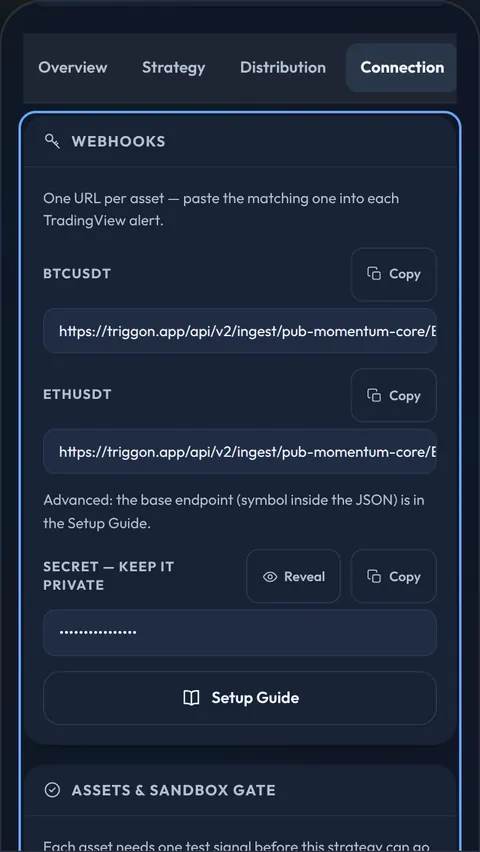
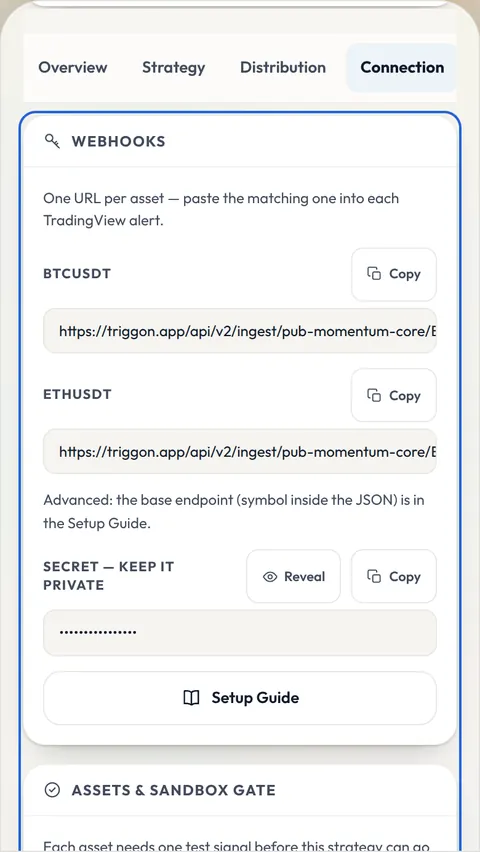
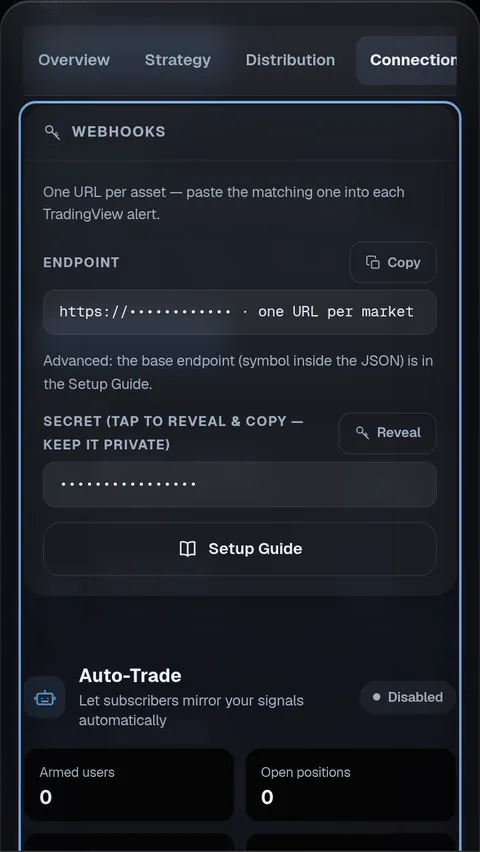
The Provider Hub's Connection tab in the app: one private connection per declared market with a Copy button, the masked secret with a Reveal button, and the Setup Guide.
Provider Hub · Connection tab (the app as it is today)
  1. Open the Setup Guide in the Connection tab and copy the private connection and the ready-made alert message for each declared symbol.
  2. Point each chart's alert at its connection and fire it in test mode until every declared symbol shows a passed test. Test mode stores nothing.
  3. Add the health check to your script and let it run: it proves the Strategy is alive between trades, and Go Live waits for it.
  4. Press Go Live. Your Strategy is listed on the Marketplace with the price and seats you set in the Distribution tab.

11. Publishing, subscribers and your responsibilities

What publishing means

Every Signal from Go Live on is permanent and public. Subscribers pay from their Triggon wallet, your share lands in yours, and you withdraw when you choose. Once 20 trades have closed over 30 live days, the Strategy is ranked on the Leaderboard by its Triggon Score.

What we ask of you

Complete Signals, an entry with a stop and at least one target, and management of what you open. Keep the Strategy running: a Strategy that goes silent is warned, and then suspended from the Marketplace with its subscribers told, which is worse for a record than a losing month.

What you can change

Prices (above the minimum), seats, pausing, Hub recharges: yourself, in the Hub. Description, links, images and declared trading facts: reviewed before they go live.

What is fixed

The route (Algo), the market (crypto) and Spot or Futures are fixed at application. A different route or market is a new Strategy.

Ready to apply? The checklist

These are the items the application asks you to confirm before Submit and Pay on the crypto Algo route. If every line is true, you are ready.

  • My Pine Script Strategy runs on TradingView and my plan can send webhook alerts.
  • My alerts cover entries, stops, targets and exits for every symbol I declare.
  • My exchange account is set up. I know Triggon never needs my API keys.
  • The symbols I selected are the ones this Strategy actually trades.
  • My backtest export is ready in an accepted format.
  • My Provider profile (name, summary, description, links) is complete.
  • I have reviewed the minimum prices, the platform fee and my share.
  • I understand the Hub creation cost is charged now, buys a validity period, and is not refunded.
  • The information in this application is accurate and mine to publish.