TRIGGON Open in Telegram
Manual Provider · Stocks

Stocks Manual Provider guide: US equity Signals by hand, inside the trading session.

The stocks Manual route is the Signal Terminal applied to US-listed shares: a market with a trading session, a leverage ceiling set by regulation rather than by an exchange, and shares as the unit behind the size you choose. No TradingView, no code, no brokerage connection. This page is the whole route in order, with everything the terminal will enforce stated before you apply.

This route is open for applications right now.

Is this your route?

Yes, if

You trade US-listed stocks on your own judgement, can state your rules, and want distribution and a record without automation.

Your roadmap

Nine steps; five before the application, four inside Triggon. The application's route screen shows the same list.

  1. Write your Strategy downbefore you apply

    Its markets, timeframes, trading styles, leverage band, take-profit method and the most you risk on one position. The application asks for exactly these, and the Signal Terminal enforces them.

  2. Choose the symbols you will tradebefore you apply

    The symbols you register are the only ones your Signal Terminal will offer. Enabled today: every symbol on Triggon's stocks list. Up to 1 per application.

  3. Decide your risk settingsbefore you apply

    The maximum capital risk per position and the leverage band you declare are checked on every Signal you send. Declare what you actually do.

  4. Prepare your Provider profilebefore you apply

    Your public name, a one-line summary, a full description, optional links and images. Subscribers read this before they subscribe.

  5. Review pricing and feesbefore you apply

    The Hub creation cost, its validity period, the minimum subscription prices for this market and the platform fee are all stated before you apply, from the current platform settings.

  6. Complete the applicationin Triggon

    The form collects what you prepared and validates it. The Hub creation cost is charged from your Triggon wallet when you submit.

  7. Wait for admin reviewin Triggon

    An admin approves, asks for revisions or rejects, always with a reason. Resubmitting after a revision request is free.

  8. Run the pre-live previewin Triggon

    After approval: open the Signal Terminal in your Provider Hub, preview one Signal end to end, then press Go Live.

  9. Publish and build your recordin Triggon

    Go Live lists the Strategy on the Marketplace with the price and seats you set. Every Signal from then on is recorded permanently.

1. Write your Strategy down

InstrumentCash equity (shares bought and held, Regulation T margin) or an equity derivative (futures or CFDs on the underlying). The same 4× ceiling applies to what you may declare.
TimeframesUp to six, from 3m upwards; the live stock price can be about a minute old at the source.
Trading stylesUp to three from Triggon's list.
Sessions and activityThe New York session is the one that matters here; declare it, your timezone and your off days.
Take-profit methodFixed, dynamic or multi-level; targets are chosen per Signal.
Position modeOne-Way for cash equities; an equity derivative may allow Two-Way where its account model does.

2. The symbols you register, and the market's rules

The listUS-listed securities from the exchange operators' own directory. Enabled now: every symbol on Triggon's stocks list.
Per applicationUp to 1. The registered symbols are the only buttons your terminal has.
SpellingThe ticker as the directory lists it (AAPL). The application's picker offers only list entries.
Market hoursSignals are priced from a feed that knows whether the session is open. A Signal attempted outside the session is refused with that reason rather than priced off the last close.
Price freshnessEvery Signal is priced by a live fetch at send; a price older than the market's limit is refused and you are told to try again in a moment.
UnitsSize is a percentage of the simulated capital; the terminal shows the share-equivalent as a read-out. A position that would round to nothing is refused.

3. Your risk and leverage settings, and what the terminal enforces

Maximum capital risk per position

The most of the simulated capital a single position may lose at its stop, as a percentage. A stop that risks more than your declared cap is refused.

Leverage band

No leverage, a fixed multiplier, or a range, never above 4×. A band above the ceiling is refused at declaration, because every Signal built above it would be refused later.

Size and the simulated account

Each Signal's size is a percentage of the simulated capital, which starts at $10000 and is replayed from your positions. An entry the account cannot afford is not opened.

Price drift

The price you saw while composing and the price fetched at send must agree within a small tolerance; otherwise the Signal is refused.
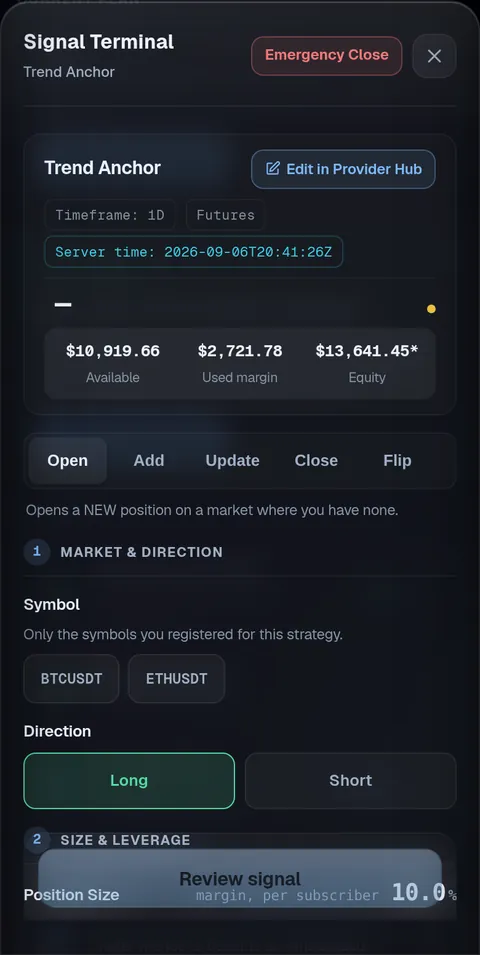
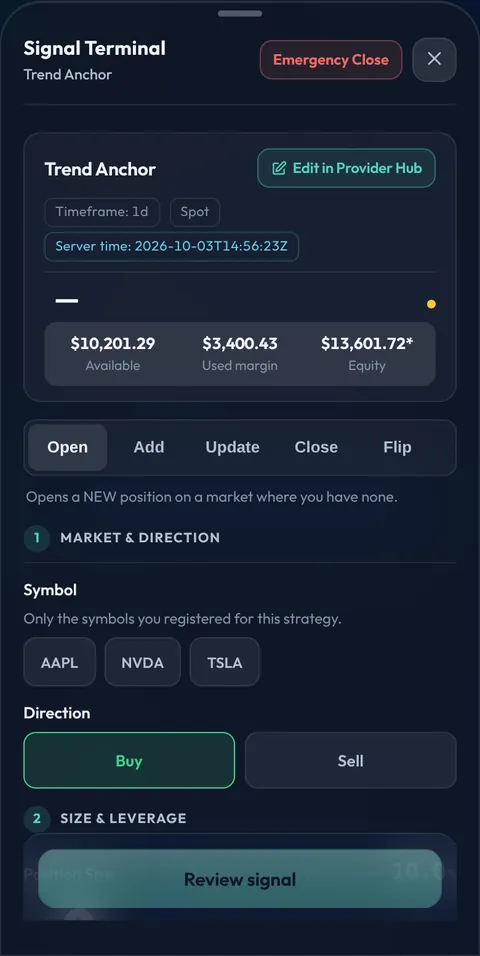
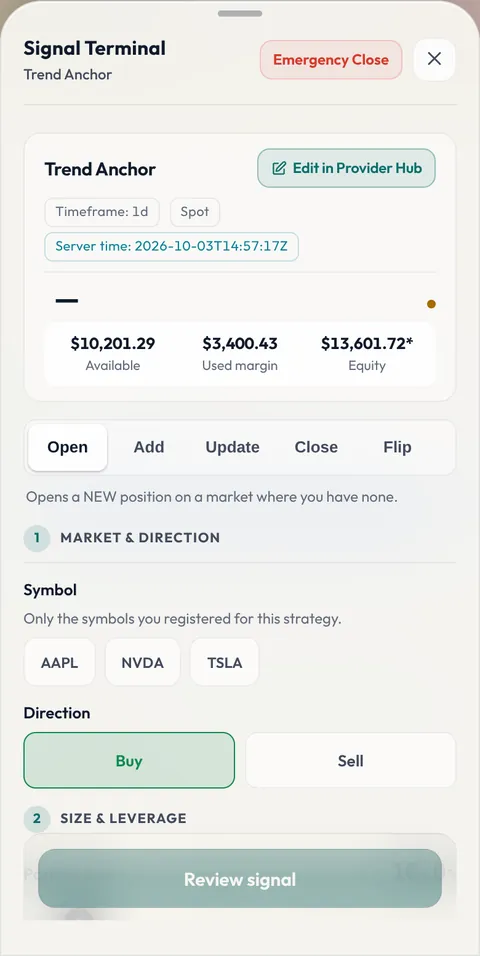
The Signal Terminal in the app, opened on a Manual Strategy: the market and the simulated capital in the header, the Open, Add, Update, Close and Flip actions, then the numbered steps: market and direction, size and leverage, stop and targets.
The Signal Terminal (the app as it is today)

How a Signal is created

  1. Symbol and direction. Tap a registered symbol, choose buy or sell.
  2. Size and leverage. The percentage of capital and, where allowed, the multiplier inside your band.
  3. Stop and targets. Drag them on the live chart or type them; the risk is shown against your cap.
  4. Send. Triggon fetches the live price, confirms the session is open and the price fresh, runs every check, records the Signal and delivers it.
  5. Manage it. Update, add, take partial profit or close, each its own Signal.

4. Your Provider profile

Identity

Your name, email and country come from your Triggon Profile and are shown read-only in the application.

The Strategy, described

A unique English name, a one-line summary, a full description, a risk level.

Links and images

Optional website and social handles, a logo, a banner, a profile picture and a cover image.

Nothing to upload. No backtest export and no script screenshot are asked for on the Manual route.

5. Pricing and fees on the stocks route

Read live from the platform settings, per category.

Hub creation cost$5, charged from your Triggon wallet when you submit. It is the application fee and buys the Strategy's Hub 1 month(s) of validity from approval. Not refunded; a resubmission after a revision request is free.
Minimum subscription pricesMonthly $6.08, quarterly $18.04, yearly $71.77. Maximum $10,000.
Platform fee15% of each subscription; you keep 85%.
Keeping the Hub validA sale that runs past the Hub's validity tops it up automatically from that sale at the current rate. You can recharge yourself at the current rate. An expired Hub stops new sales and Go Live until recharged.
Seats10 to 1000 subscribers, changeable in the Hub.
Cancellations and refundsUnused value is released to a cancelling subscriber under the published rules. The rules →
Worked example, from the current rules

One monthly subscription at $29

Subscriber pays$29from their Triggon wallet
Platform fee 15%$4.35kept by Triggon
You receive$24.65to your Provider wallet

An illustration computed from the live fee rate, not a forecast or a guarantee. Actual earnings depend on filled seats, cancellations and refunds, promotions, and any automatic Hub top-up. What decides what you earn →

6. The application

Opened in Telegram. It confirms the route you chose here, links this guide on every step, shows no webhook, API or platform field, and labels the venue field Broker.

What it asks, on this route

Provider info, then the Strategy: name, summary, description, styles, risk level, market: Stocks (fixed from your route), cash equity or derivative, position mode, the symbols from the picker, your broker (optional), timeframes, the leverage mode and band (within 4×), the take-profit method, the maximum capital risk per position, prices and seats. Then branding, operations and the review.

What it does not ask

No backtest export, no script screenshot, no brokerage credentials, no connection details, no take-profit ladder, no drawdown claim.

Save and resume

Every step is saved on the server; leave and return with your route, market and answers preserved. Nothing sensitive is stored in your browser.

Before you can submit

The checklist at the end of this page, confirmed item by item, and the fees shown once more. Then Submit and Pay.

7. After you submit

  1. Submitted. The Hub creation cost is charged and the application locks for review.
  2. Admin review. Approved, revisions requested (resubmitting is free), or rejected, each with a written reason. What is reviewed →
  3. Approval. Provider profile and earnings wallet created, Strategy provisioned as Pending, Hub created with the validity you paid for, counting from now.

8. Your Provider Hub and the pre-live preview

  1. Open the Signal Terminal from Account → Provider Hub during the session. Your registered symbols are its buttons.
  2. Preview one Signal end to end. It runs every check the real Signal would pass, including the live-price fetch. Nothing reaches a subscriber and nothing counts towards your record.
  3. Press Go Live. Your Strategy is listed on the Marketplace with the price and seats you set.

9. Publishing, subscribers and your responsibilities

What publishing means

Every Signal from Go Live on is permanent and public. Your share of each subscription lands in your wallet. After 20 closed trades over 30 live days the Strategy is ranked by its Triggon Score.

What we ask of you

Complete Signals with a stop and at least one target, managed to a close, sent within the session. Positions held overnight or over a weekend are yours to manage when the market reopens.

What you can change

Prices (above the minimum), seats, pausing, Hub recharges: yourself. Description, links, images and declared trading facts: reviewed first.

What is fixed, and one difference

The route (Manual), the market (stocks) and the instrument type are fixed at application. Automatic execution is reserved for Algo Strategies: your subscribers act on your Signals themselves.

Ready to apply? The checklist

The items the application asks you to confirm before Submit and Pay on the stocks Manual route.

  • My Strategy rules, timeframes and styles are written down and match what I declared.
  • The symbols I selected are the ones this Strategy actually trades.
  • I understand this market has trading hours and that a stale or closed-market price is refused.
  • My risk cap and leverage band are what I really use; every Signal is checked against them.
  • My Provider profile (name, summary, description, links) is complete.
  • I have reviewed the minimum prices, the platform fee and my share.
  • I understand the Hub creation cost is charged now, buys a validity period, and is not refunded.
  • The information in this application is accurate and mine to publish.